Articles
How to set up an Osintly organization workspace
Follow the full Osintly organization setup, then see how members, SSO, shared searches, history, credits, billing, and API access work.
By OsintlyRead
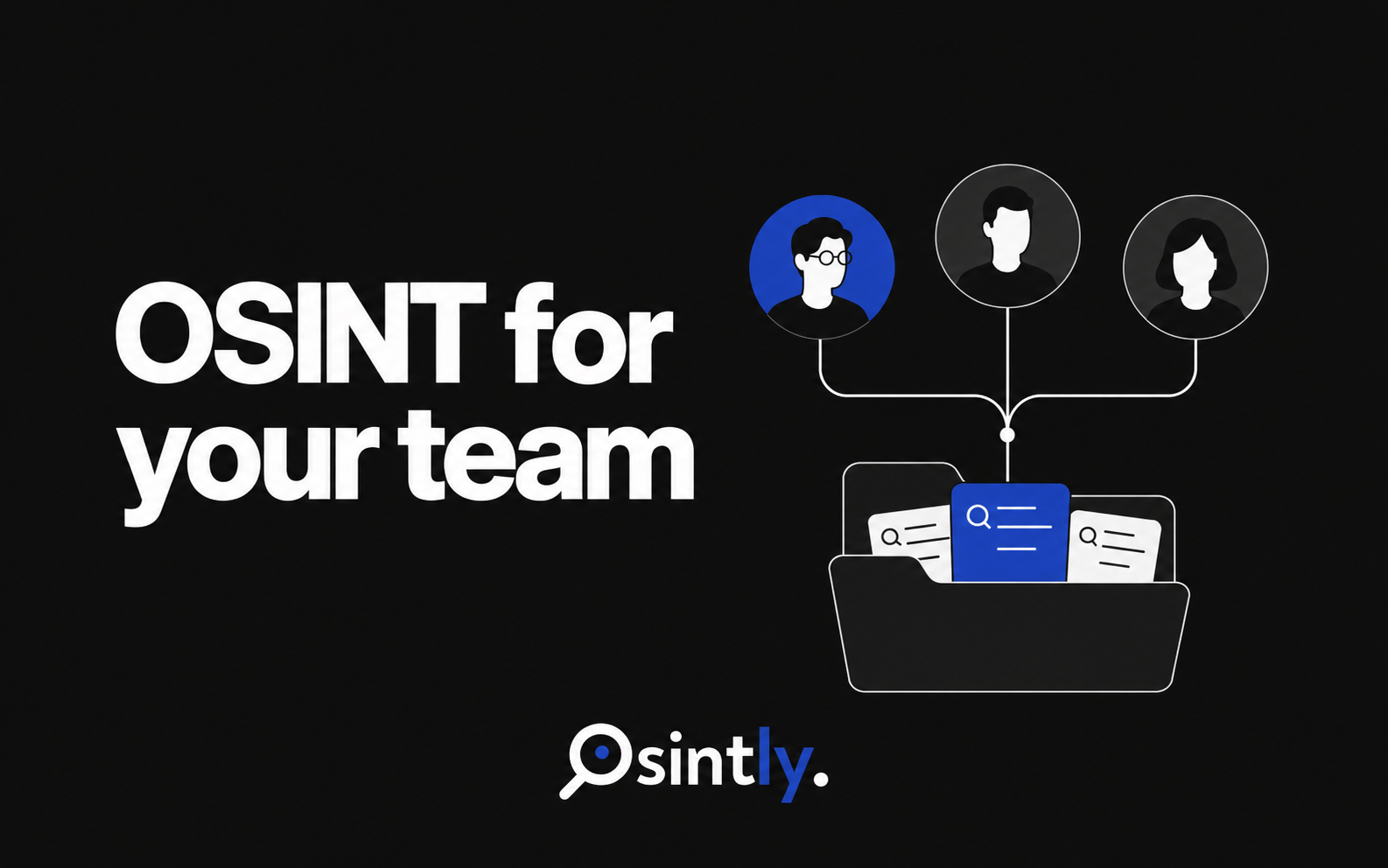
An Osintly organization gives your team shared searches, investigation projects, monitoring, and a common credit balance. Each person signs in with their own account and can reopen the research saved in the organization.
That makes a difference when several people work on the same case. A colleague can review your results, add notes, and continue the investigation without asking you to send each search separately.
Select the organization before starting a search or saving a Tool result. That work belongs to the shared workspace, where authorized members can find it.
Personal work stays in your Personal workspace. You can switch between Personal and organization workspaces from the sidebar, so a team investigation and your own research can remain separate.
Organization plans include the research capabilities of the matching Personal plan. Both Pro and Ultimate cover pseudonyms, emails, IP addresses, domains, crypto research, and supported breach sources. You can keep using the tools you already know with your team.
Shared History shows searches and saved Tool results, including the searched value, creator, type, and date. Search and filter the history to find earlier work.
Reopening a saved result does not launch another lookup or spend another search credit. You can review what was collected, check the sources, and decide whether a fresh search is needed.
For a shift handover, that means the next analyst can start with the existing results. The saved result is a snapshot; run a new lookup when you need current data.
Investigation projects group the material for a case in one place. Members can work with shared searches, add notes, and keep relevant files alongside the investigation.
Pro supports 50 projects with 250 MB of file storage per project. Ultimate supports 150 projects with 1 GB per project.
For example, one analyst can research an email address and add the results to a project. A colleague can check an associated domain, save those results, and add a note explaining the connection. A reviewer can then inspect both searches and the notes in the same project.
Every paid seat adds monthly credits to the organization's shared balance:
A five-seat Pro organization therefore has 500 shared monthly credits. Five Ultimate seats provide 1,000. Members draw from the organization allowance when they work in that workspace, so the credits are available to whoever needs to run the next search.
Owners and admins can review the remaining balance and member-level usage. The usage view separates search and Tool credit consumption, which helps explain where the allowance went.
Organizations have three roles:
| Role | Main responsibilities |
|---|---|
| Owner | Billing, role changes, SSO configuration, ownership, and organization administration |
| Admin | Member invitations, permitted member removals, usage review, and day-to-day administration |
| Member | Shared research, projects, history, exports, and monitoring within the assigned permissions |
Each person uses their own account. You can add or remove members without sharing one login across the team.
The Members page shows occupied, available, and reserved seats. Invitations let you prepare access for new colleagues, while the Permissions page explains what each role can do.
Organizations support company single sign-on through Microsoft Entra, Google Workspace, Okta, and other SAML providers.
This lets members use their company identity for access to Osintly. The organization owner configures SSO, and members keep their assigned organization roles. Joining still requires membership or a valid invitation.
The organization setup walkthrough shows the SSO settings and the rest of the onboarding process.
Monitors, alerts, and notification channels can belong to the organization. Members can work with the shared monitoring configuration, while owners and admins manage notification channels.
A colleague can see what is already being monitored before creating another monitor for the same research. The team can review alerts in the same workspace as its searches and projects.
Pro allows up to 5 active monitors per member; Ultimate allows up to 15. Both include monitoring and real-time alerts, subject to source availability.
Both organization plans include AI Analyst. Pro provides 100 messages per member per month and up to 3 conversations per search. Ultimate provides 500 messages and up to 10 conversations per search.
Use it to ask questions about the research you are reviewing, then check the underlying sources before using a conclusion in your report. The allowance is listed per member, so it should not be confused with the shared search-credit balance.
Members can export shared searches and saved Tool results. Osintly supports PDF, JSON, CSV, Markdown, and DOCX exports where available for the result or report being exported. Complete shared-result exports also let the team retain a portable copy of its collected data.
Use a document export for a report, or structured data when another system needs to process the results. Export options depend on the content: a saved Tool result and a full investigation do not necessarily offer the same formats.
Ultimate also includes shareable investigation results. Shared access inside the organization is available on both plans.
Owners and admins can inspect searchable organization activity and filter it by actor, area, action, or date. Activity can be exported as CSV or JSON.
The usage view includes member-level consumption and seat occupancy. The organization owner manages the app subscription and paid seats from one billing area.
This gives the person responsible for the budget a way to check usage before adding capacity. It also lets an administrator find who performed an action without asking every member separately.
The organization pricing page lists the following Pro and Ultimate allowances on October 3, 2026:
| Organization Pro | Organization Ultimate | |
|---|---|---|
| Monthly price before volume discounts | €29 per member | €109 per member |
| Shared monthly credits added per seat | 100 | 200 |
| Projects | 50 | 150 |
| File storage per project | 250 MB | 1 GB |
| Tool searches per member, per hour | 40 | 300 |
| Tool searches per member, per day | 100 | 750 |
| Simultaneous Tool searches per member | 1 | 3 |
| Simultaneous Tool searches for the team | 1 × seats, capped at 8 | 3 × seats |
| AI Analyst messages per member, per month | 100 | 500 |
| AI conversations per search | 3 | 10 |
| Active monitors per member | Up to 5 | Up to 15 |
| Research activity retention | 30 days | 90 days |
| Shareable investigation results | Not included | Included |
| Advanced analytics and reporting | Not included | Included |
| Dedicated support | Not included | Included |
Both plans include the shared workspace, shared history, projects, roles, credit bank, monitoring, complete shared-result exports, and centralized administration. Tool limits apply alongside the shared credit allowance.
You can configure up to 25 seats through self-service. Volume discounts start at 5 seats, and the checkout shows the total for your selected plan and seat count.
For a larger deployment or specific capacity requirements, contact sales about Enterprise. The Enterprise offer includes tailored volume pricing, dedicated account support, and priority access to new features. Capacity and support commitments are agreed with your organization.
If your team also uses the Osintly API, the organization has its own API workspace for keys, usage, limits, and API billing. An integration can belong to the organization rather than one employee's Personal workspace.
App subscriptions and API subscriptions are separate. Choose an API plan for the execution capacity your integration needs; an organization app subscription does not include a paid API subscription.
Choose Pro if its project, monitoring, and research allowances fit your workload. Choose Ultimate if your team needs more Tool capacity, more AI messages, longer research activity retention, shareable results, or dedicated support.
Compare organization plans, then use our setup walkthrough to create the organization and invite your colleagues.
Articles
Follow the full Osintly organization setup, then see how members, SSO, shared searches, history, credits, billing, and API access work.
Articles
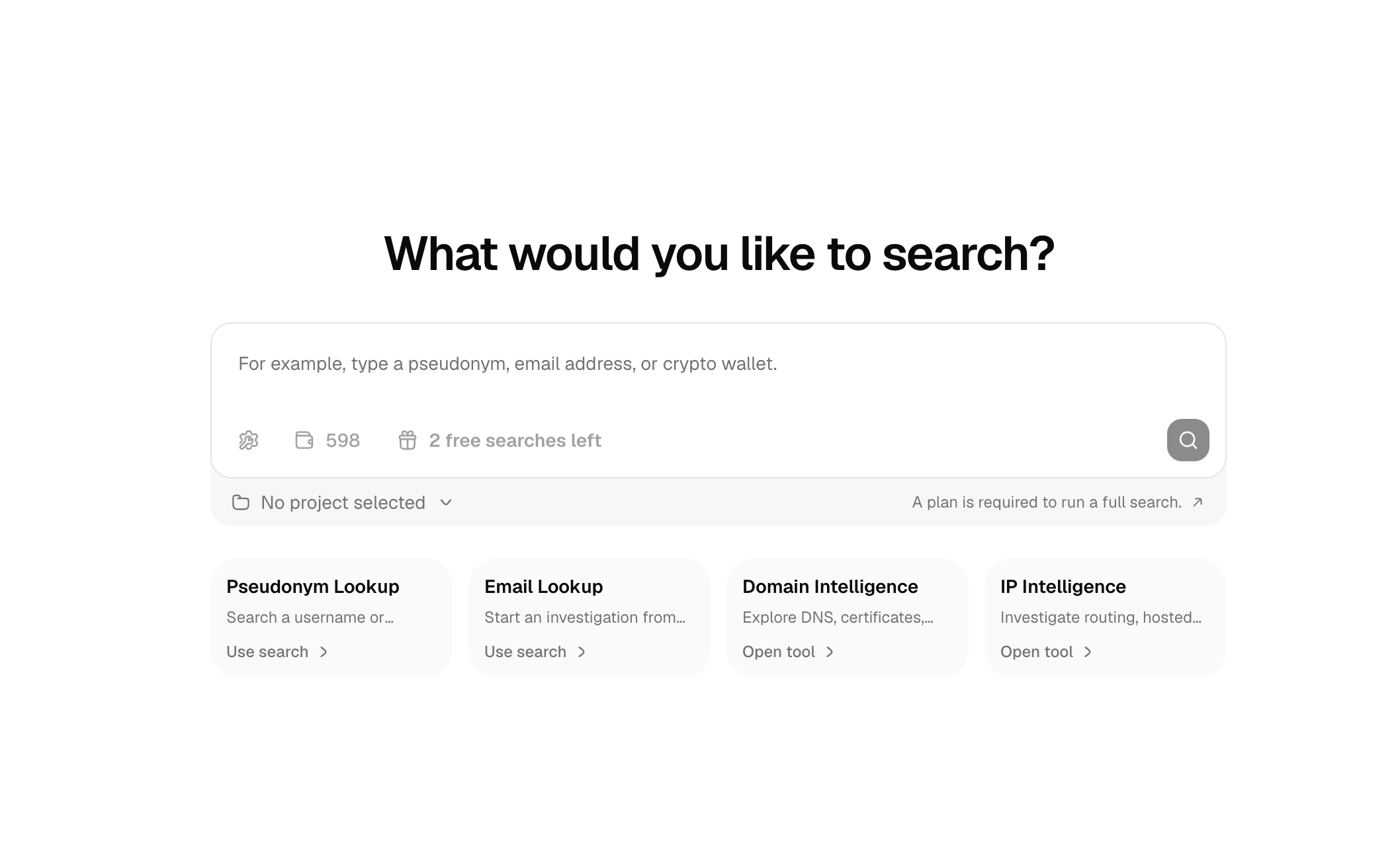
Run a limited free OSINT search for a username or email on Osintly. Learn what the preview shows, how quotas work, and when to run a full search.
Articles
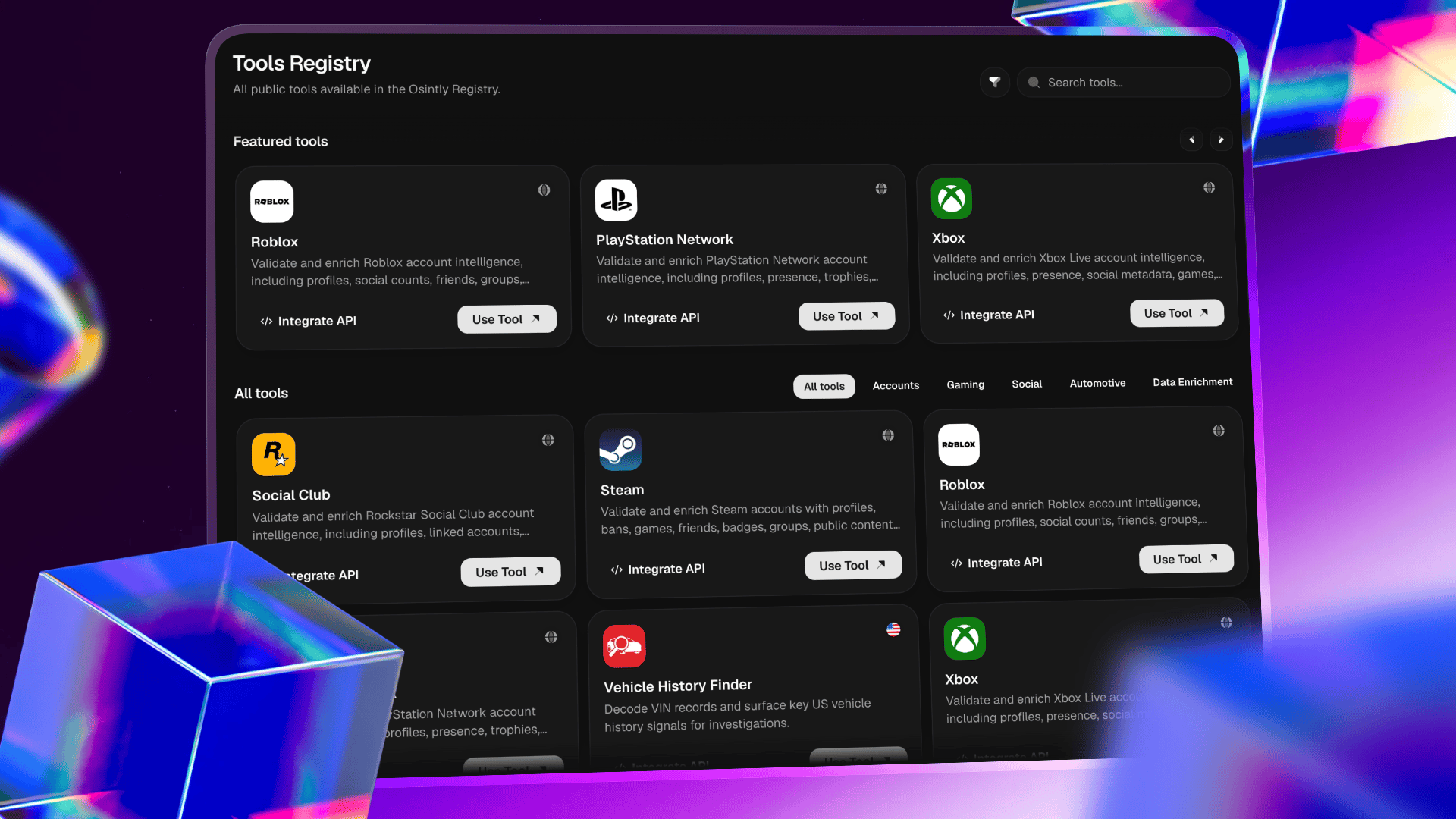
Run focused OSINT enrichment through one documented API, with hosted demos, predictable costs, and deep Epic Games account intelligence.

Articles
Learn how Osintly handles search history, data retention, deletion, AI processing, privacy, and responsible OSINT use.Add a short description for the public blog card and search results.
1,550+ ready-to-use OSINT modules covering people, companies, domains, emails, and more.
Everything you need to integrate Osintly into your workflow, from quick start to advanced APIs.
Connect with thousands of OSINT investigators. Share techniques, ask questions, collaborate.
Tutorials, case studies, and insights from our team of open source intelligence specialists.
1,550+ OSINT modules. AI analyst built-in. Real-time data. Everything you need in one place.